
Implement Mobile Device Management: A Step-by-Step Rollout Guide
Separating corporate data from personal use requires containerisation, which enforces policy without exposing private messages or photos to your security team.
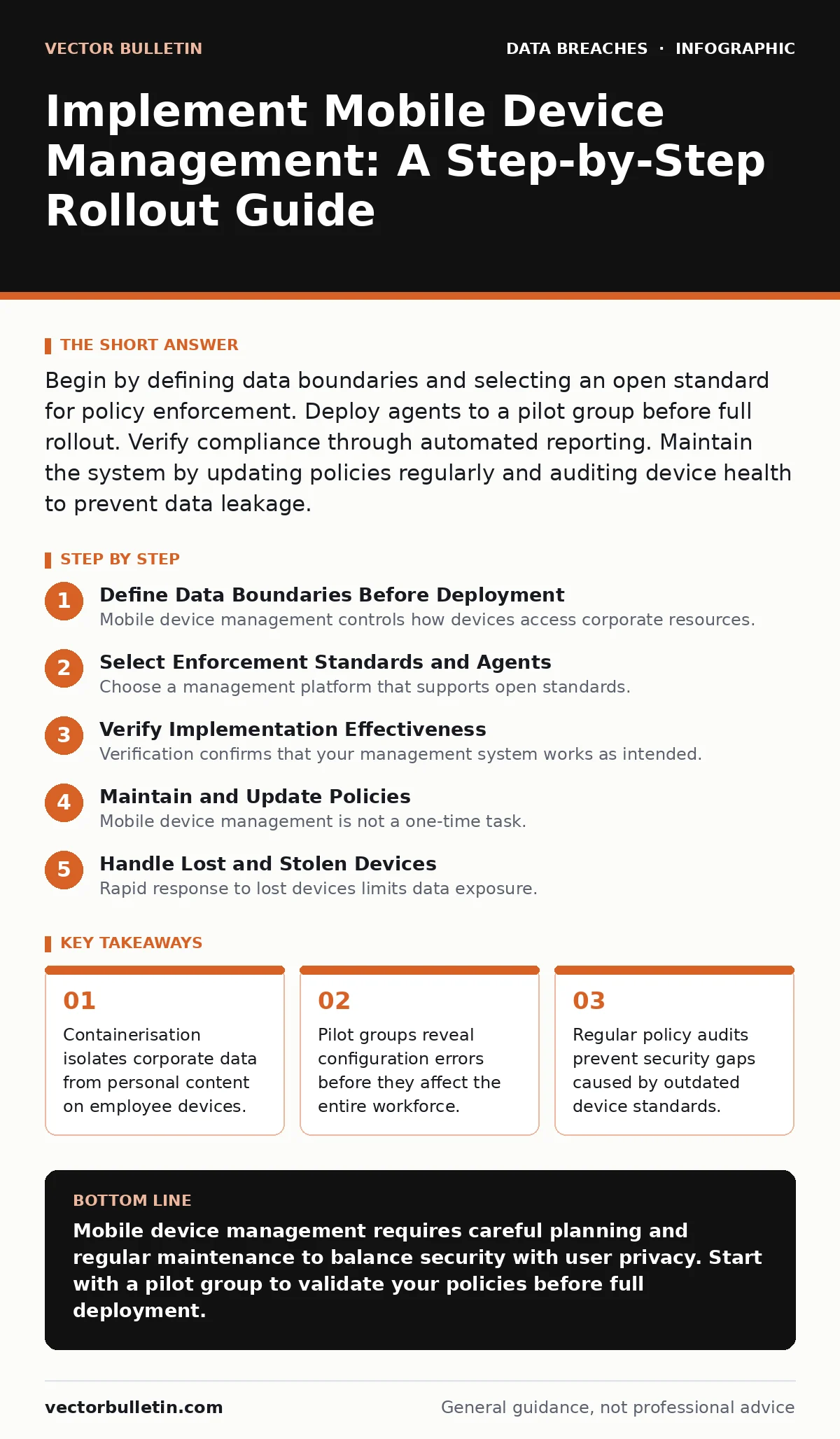
Begin by defining data boundaries and selecting an open standard for policy enforcement. Deploy agents to a pilot group before full rollout. Verify compliance through automated reporting. Maintain the system by updating policies regularly and auditing device health to prevent data leakage.
Define Data Boundaries Before Deployment
Mobile device management controls how devices access corporate resources. You must decide what data requires protection before writing any policy. Personal devices often contain sensitive information unrelated to work. Treating the entire device as corporate property creates privacy conflicts and legal risks. Containerisation solves this by creating a secure workspace. This virtual layer holds emails, documents and apps. It remains separate from the personal operating system.
You can wipe the container without touching personal photos or contacts. This separation builds trust with users who bring their own devices. It also limits the scope of remote actions. Your policies should specify which apps live inside the container. Messaging apps often require special handling due to data exfiltration risks. Define these boundaries clearly in your documentation. This clarity prevents confusion during the rollout phase. Users need to know exactly what is monitored and what is private.
Select Enforcement Standards and Agents
Choose a management platform that supports open standards. Proprietary protocols lock you into a single vendor. Open standards ensure compatibility across different operating systems. The agent software runs silently on each device. It communicates with your central server to receive policies. These policies dictate password complexity, encryption requirements and app restrictions. The agent also reports device status back to the server. This two-way communication allows for real-time monitoring.
Ensure the agent can handle offline scenarios. Devices often lose connectivity in transit. The agent must cache policies and apply them when connection resumes. This prevents security gaps during network outages. Verify that the agent supports your target platforms. iOS and Android have different security models. The agent must adapt to these differences automatically. Do not rely on manual configuration for each device type. Automation reduces human error and saves administrative time.
Step 1: Configure Policy Profiles
Create distinct policy profiles for different user groups. Executives may need different access levels than field staff. Tailoring policies reduces friction and increases adoption. Start with baseline security requirements. Enforce strong authentication methods for all devices. Require biometric or multi-factor authentication before accessing the container. Set password complexity rules that balance security with usability.
Too many restrictions cause users to find workarounds. Define data loss prevention rules within the container. Block copy-paste between personal and corporate apps. Disable USB data transfer for sensitive devices. These restrictions prevent accidental data leakage. Test these policies in a sandbox environment first. Verify that they do not break critical business applications. Adjust settings until security and functionality align.
Step 2: Deploy to a Pilot Group
Roll out the management agent to a small group first. This pilot group should represent diverse device types and user roles. Monitor their experience closely for the first week. Collect feedback on usability issues and performance impacts. Users may report app crashes or battery drain. These issues often stem from conflicting policies. Resolve these problems before expanding the rollout.
Check that the agent installs correctly on all devices. Verify that policies apply as expected. Ensure that remote wipe functions work in the container only. This test confirms that personal data remains safe. Document any errors encountered during this phase. Use these insights to refine your deployment scripts. A successful pilot reduces risk for the wider organisation. It also builds confidence among remaining users.
Step 3: Full Organisation Rollout
Expand the deployment to all eligible devices. Use automated scripts to push the agent installation. Communicate clearly with users about the change. Explain the benefits of enhanced security and privacy. Provide support channels for troubleshooting questions. Monitor installation rates and success metrics daily. Identify devices that fail to enrol and investigate causes.
Common issues include incompatible operating system versions. Require users to update their OS if necessary. Enforce compliance deadlines for enrolment. Devices that remain unmanaged pose a security risk. Disable access to corporate resources for non-compliant devices. This enforcement ensures a consistent security posture. Track progress against your timeline. Adjust resources if adoption lags behind expectations.
Verify Implementation Effectiveness
Verification confirms that your management system works as intended. You must check both technical compliance and user behaviour. Automated reports provide data on device status. Review these reports for anomalies or gaps. Check that all enrolled devices meet policy requirements. Look for devices with outdated operating systems. Identify devices that have jailbroken or rooted. These actions bypass security controls and require immediate action.
Verify that data encryption is active on all devices. Ensure that lost or stolen devices can be located remotely. Test the remote wipe function on a spare device. Confirm that only corporate data is removed. This test validates the containerisation strategy. It also proves that personal data remains intact. Documentation of these tests supports compliance audits. It demonstrates due diligence in protecting information.
- All devices enrolled in management platform
- Policies applied correctly to each device
- Remote wipe tested and verified
- Encryption enabled on all storage
- Offline policy caching confirmed
Maintain and Update Policies
Mobile device management is not a one-time task. Threats evolve and technology changes. You must update policies regularly to address new risks. Review policy effectiveness quarterly. Assess whether current restrictions still meet business needs. Update app whitelists and blacklists as needed. Remove deprecated applications from allowed lists. Add new security patches to required updates. Monitor for vulnerabilities in managed apps.
Patch these vulnerabilities promptly to prevent exploitation. Keep the management server updated with the latest features. New features may offer better security or usability. Evaluate these features before deployment. Ensure they align with your security strategy. Train administrators on new capabilities. Competent staff maximise the value of your investment. Regular maintenance keeps your security posture strong.
See also: SaaS Data Exposure: Risks and Protection for Small Businesses
Handle Lost and Stolen Devices
Rapid response to lost devices limits data exposure. Your management platform must support immediate action. Configure alerts for devices that report as lost. Enable users to report loss through a self-service portal. This speeds up the response time significantly. Upon confirmation, trigger a remote wipe of the corporate container. This action destroys access to sensitive data instantly. It does not affect personal data on the device.
Document the incident for future reference. Analyse the cause of the loss if possible. Implement measures to prevent recurrence. This might include additional physical security controls. Regular drills improve response times during real incidents. Practice these procedures with your security team. Ensure everyone knows their role in the process. Swift action reduces the impact of device loss.
Key takeaways
- Containerisation isolates corporate data from personal content on employee devices.
- Pilot groups reveal configuration errors before they affect the entire workforce.
- Regular policy audits prevent security gaps caused by outdated device standards.
Mobile device management requires careful planning and regular maintenance to balance security with user privacy. Start with a pilot group to validate your policies before full deployment.
Frequently asked questions
Does mobile device management read personal emails?
No, containerisation isolates corporate data from personal content. The management system only monitors and controls apps within the secure workspace. Personal emails remain private and inaccessible to administrators.
What happens if an employee leaves the company?
Administrators can remotely wipe the corporate container from their device. This removes all work-related data and access credentials. Personal data on the device remains untouched and unaffected by the action.
Can mobile device management work without an internet connection?
Yes, management agents cache policies locally on the device. These policies apply even when offline. The agent syncs with the server once connectivity is restored to report status and receive updates.
How do I ensure compliance with data protection laws?
Implement strict data boundaries and regular audits. Use containerisation to limit data exposure. Maintain detailed logs of all management actions. These measures demonstrate due diligence during compliance audits.
How this guide was produced: written by the Vector Bulletin editorial team with AI assistance, checked against the public references listed below, and reviewed when the facts change. See our editorial policy or report an error.